Coffee Run Crypto: Keeping HashPack Tight and Secure on Your Phone

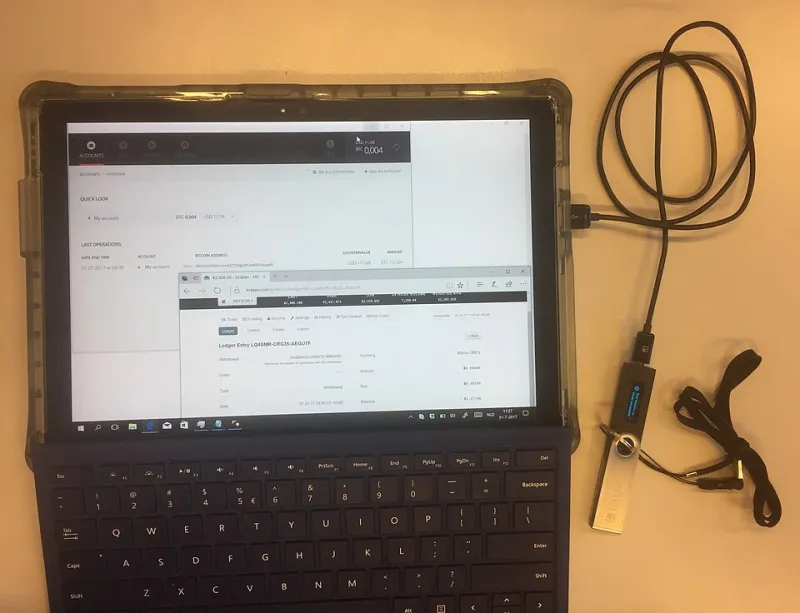
Photo: Sparrow (2019), CC0, via Wikimedia Commons
Let's be honest: most of us check our crypto the same way we check the weather — standing in line at Target, waiting on a latte, half-watching the game. And that's fine. Mobile is how HashPack was meant to be used. But your phone is also the most losable, stealable, drop-in-a-drain-able device you own, so a few minutes of setup goes a long way.
Here's how to make the HashPack app genuinely hard to crack, without turning yourself into a paranoid mess.
Start With the Lock Screen You Already Have
Before you touch a single HashPack setting, look at your phone itself. Face ID or fingerprint unlock on your iPhone or Android device is your first line of defense — a four-digit PIN from 2019 doesn't cut it when your wallet holds real money.
If your phone doesn't support biometrics, use the longest passcode you'll actually tolerate. Six digits beats four. An alphanumeric passcode beats both.
Turn On Biometric Lock Inside HashPack
HashPack has its own layer of protection on top of your phone's. Head into the app's security settings and enable biometric access so every time you open the app — or sign a transaction — it asks for your face or fingerprint.
Yes, it adds two seconds to every action. Those two seconds are exactly the point. If a friend borrows your phone to check Instagram, they're not one swipe away from your HBAR.
Set an Auto-Lock That Matches Your Actual Habits
Auto-lock is the setting people either ignore or set aggressively and then resent. The sweet spot for most people is short — somewhere in the one-to-five-minute range.
Think about how you actually use the app. If you're the type to open HashPack, glance at your balance, and toss the phone back in your pocket, a one-minute lock is painless. If you're juggling an NFT purchase and keep switching apps, five minutes saves you from re-authenticating constantly. Either way, the app locks itself when you walk away, so a phone left on a coffee shop table isn't an open vault.
Audit Your App Permissions
Your wallet app doesn't need much to do its job. Take a minute in your phone's settings and check what HashPack can access:
- Notifications — useful for transaction alerts, keep them on
- Camera — needed for QR codes, fine to allow
- Location, contacts, microphone — the wallet doesn't need these
While you're there, turn on automatic app updates. Security patches you never install are security patches that don't exist.
Keep Your Recovery Phrase Off the Phone
This is the big one. Your recovery phrase should never live in your Notes app, your email drafts, or a screenshot buried in your camera roll. Phones sync to the cloud, and cloud accounts get compromised far more often than people think.
Write the phrase on paper — or stamp it into metal if you're feeling thorough — and store it somewhere at home that isn't your desk drawer. The app itself should be a window into your wallet, never the backup.
If Your Phone Vanishes: The 15-Minute Plan
Losing a phone is stressful. Losing one with a crypto wallet is worse — unless you've already got a plan. Here's what to do:
- Use Find My iPhone or Find My Device to lock or wipe the phone remotely. Wiping removes the HashPack app along with everything else.
- Change the password on the email tied to your accounts, since your email is the master key to most of your digital life.
- Restore your wallet on a new device using your recovery phrase. This is why it lives on paper, not in your screenshots.
- Check your transaction history once you're back in. If anything moved that you didn't authorize, you'll want to know right away — though if your phrase was never stored digitally, the odds are overwhelmingly in your favor.
The whole process, done calmly, takes less time than a TSA line at a mid-size airport.
Habits Beat Paranoia
You don't need to treat your phone like a nuclear football. You just need a few defaults working in your favor: biometrics on, auto-lock short, recovery phrase offline, and a rough idea of what to do if the phone takes a swim at Lake Michigan.
Set it up once, and your HBAR is protected by layers you'll barely notice — which is exactly how good security should feel.